There’s an old saying that the eyes are the window to the soul, and the same can be said of the figures in our paintings. The eyes not only determine the expression of the subject, but also the atmosphere of the image itself.
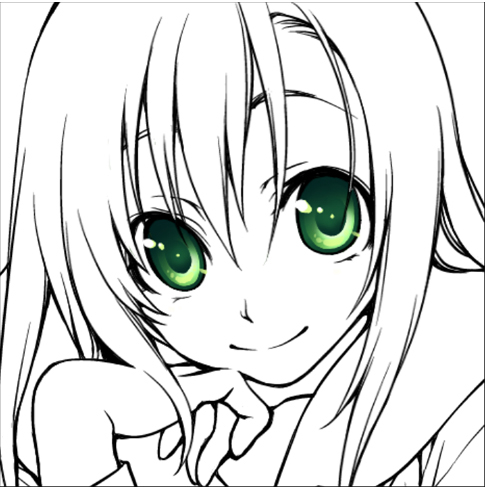
In this article, we will learn how to digitally paint attractive manga/anime-style eyes.
Why not download the line art so you can follow the tutorial step by step? The image is in PNG format and has a transparent background.
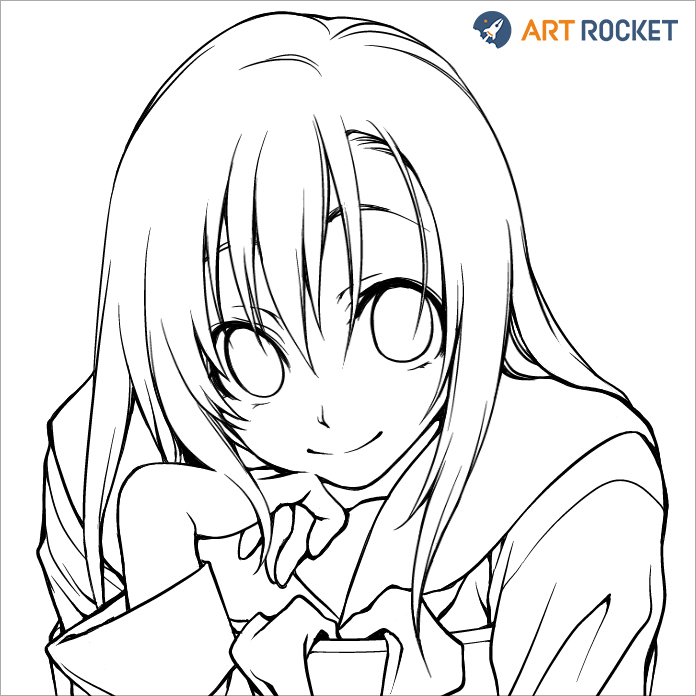
How to save the line art image
- On PC: Right-click on the image, select “Save image as…”, give it the name you want, and choose which folder you want to save it in.
- On a smartphone or tablet: Press and hold the image and tap “Download image” in the context menu. The image will be saved to your device’s gallery.
The device’s default image viewer may not open it correctly due to the transparent background, which will likely appear black. But don’t worry, the image will open without problems when imported into a drawing program.
1. Importing the line art
The first thing we will do is import the image we just saved to the canvas of your drawing program.
I open CLIP STUDIO PAINT, go to the Manage Works screen and tap the Create new from photo library button at the bottom center.
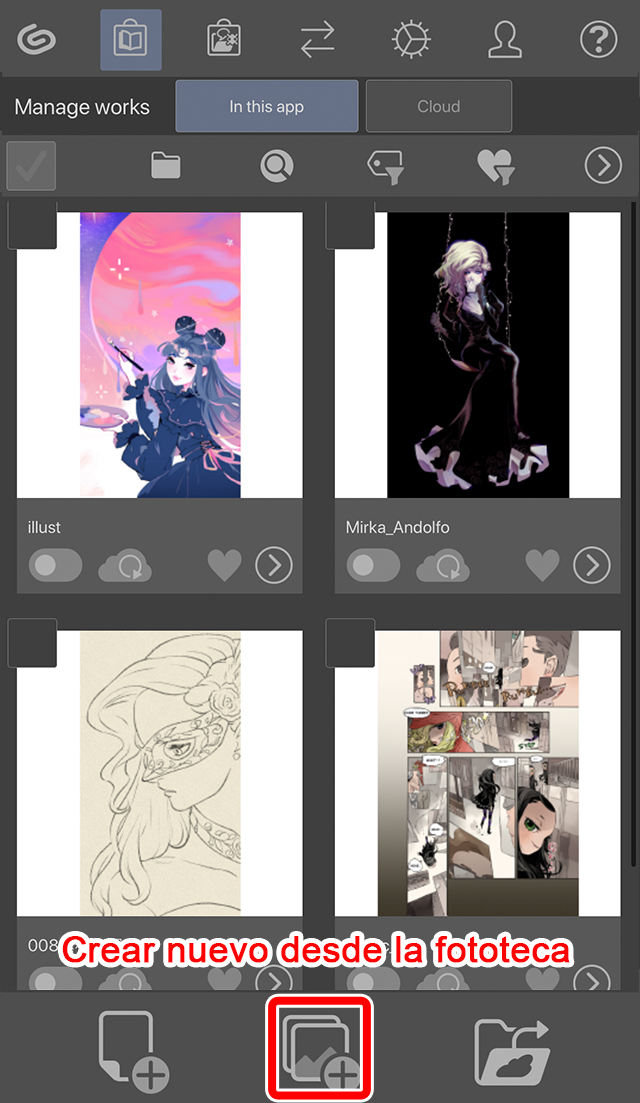
Next, I select the line art image and import it.
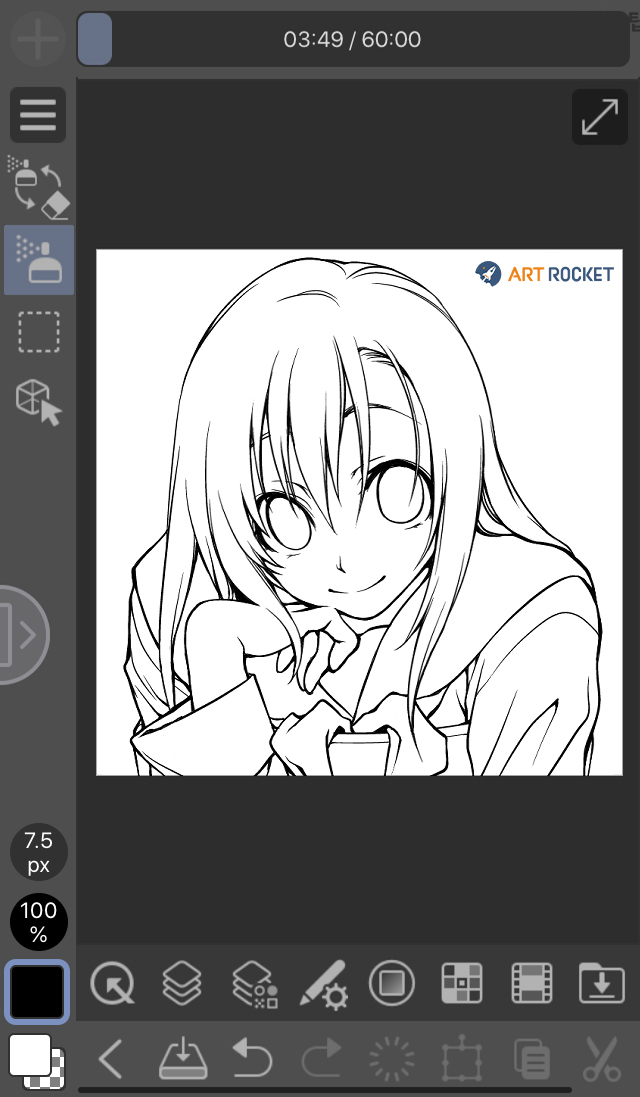
2. Creating the base layer
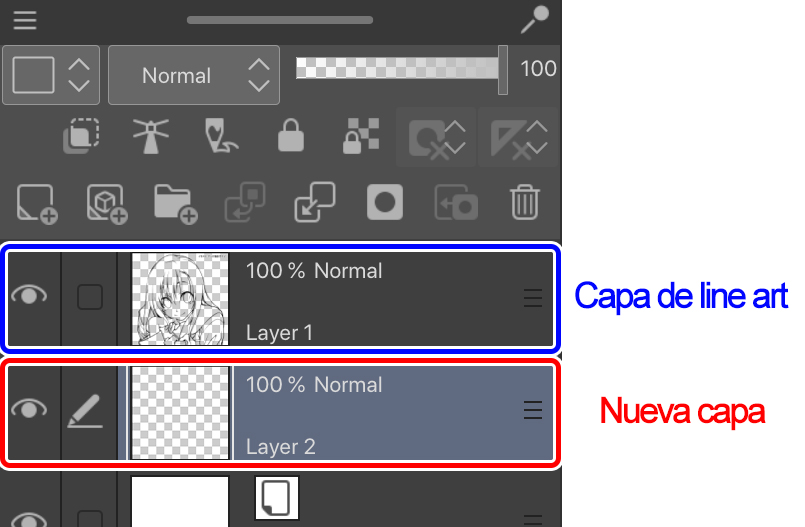
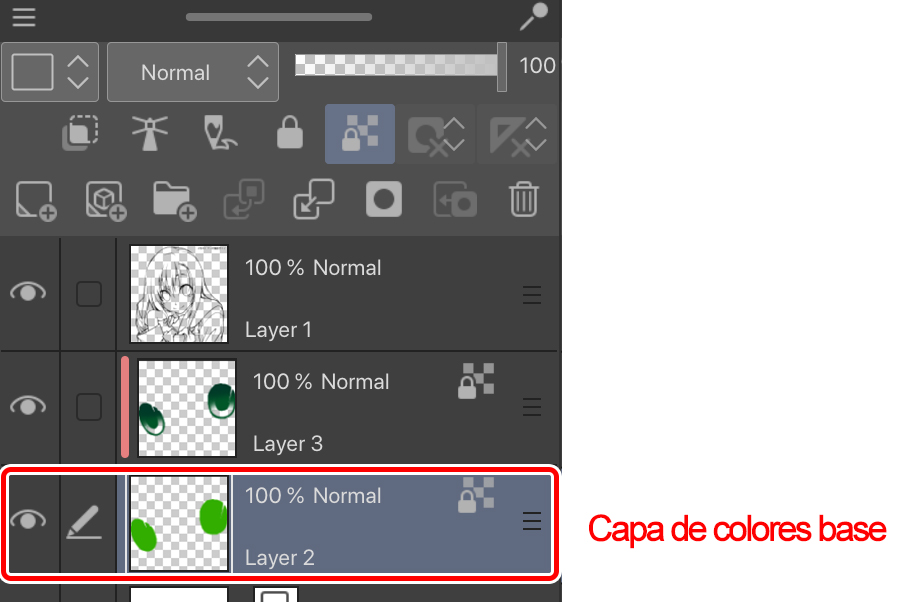
Whether you’re using my line art above or prefer to draw it yourself, it should always be on a transparent layer when working digitally. The next step is to create a new layer for the color.
So we created a new layer that will serve as a base and placed it under the line art layer.
3. Application of base colors
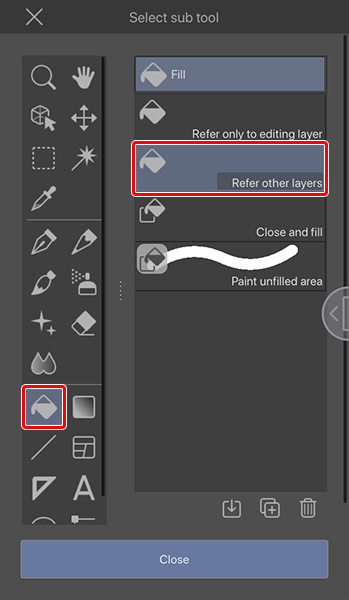
We paint the inside of the eyes with the Fill tools.
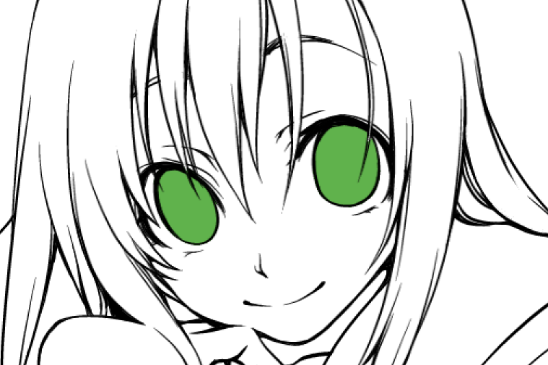
This is just the base, so don’t worry about the shading for now. For now, just make sure you don’t leave any gaps between the lines and the fill. You can use the Eraser to remove paint that goes outside the lines and the Pen to fill in the smaller spaces.
Once we’ve finished, we’ll move on to shading.
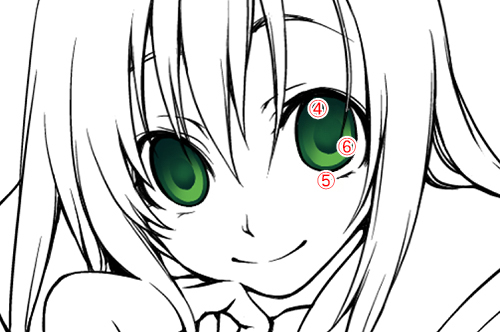
4. Iris shading
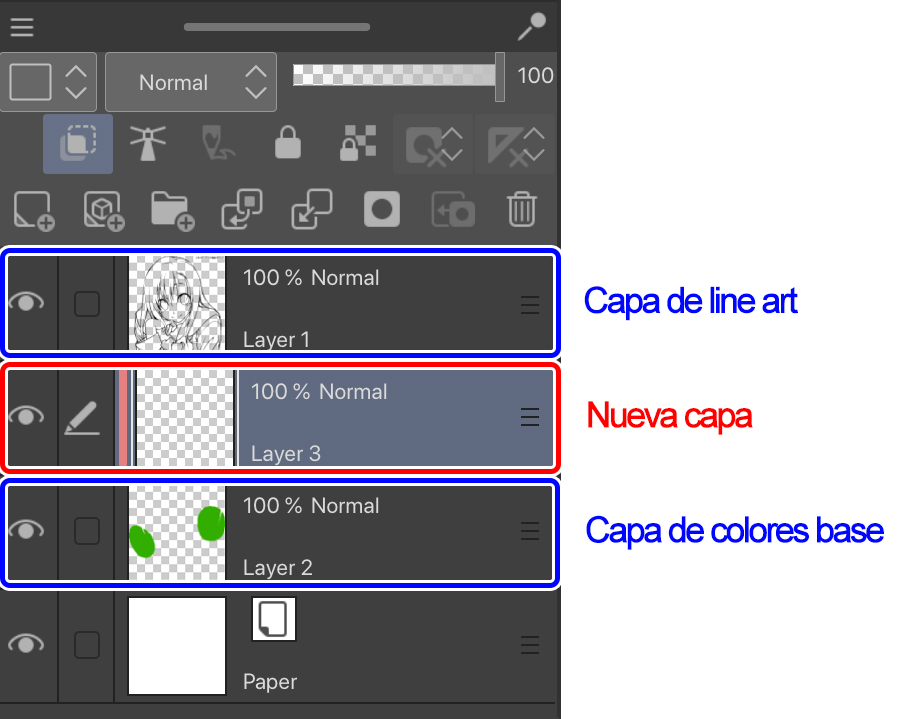
We create a new layer on top of the one from step 3 and begin to shade the iris.
To do this, we select the new layer and activate the Snap to Layer Below button .
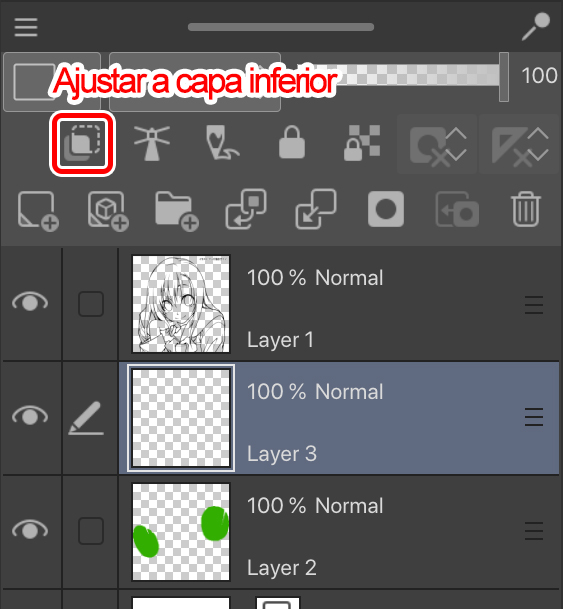
This will anchor the new layer to the base layer, limiting the area that can be painted to the existing pixels in the base layer.
When shading, I use two brushes: a pencil or a hard-tipped pen for the sharpest lines and an airbrush for painting the softer contours.
1. I trace the inside of the iris using the nib and a color with a darker tone than the base.
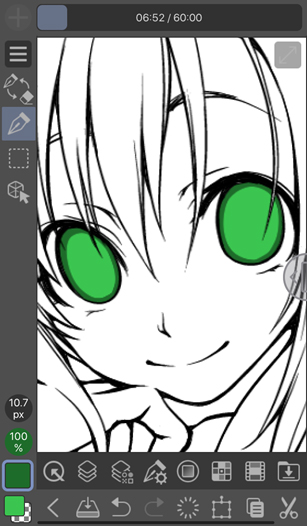
2. Coloring the upper half of the iris with the airbrush.
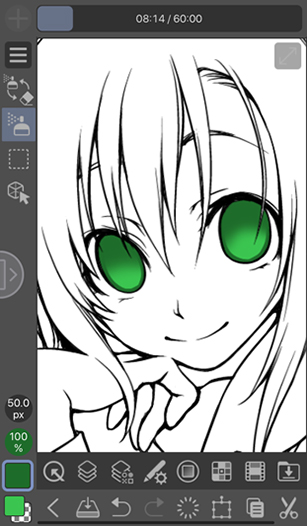
3. We draw the pupil in the center of the eye.
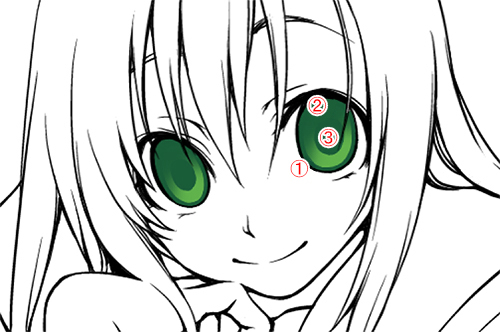
Next, we added darker shadows to give more depth to the eyes and integrate them into the line art.
If your drawing software has a function to Lock Transparent Pixels or Lock Alpha , this step will take less time.
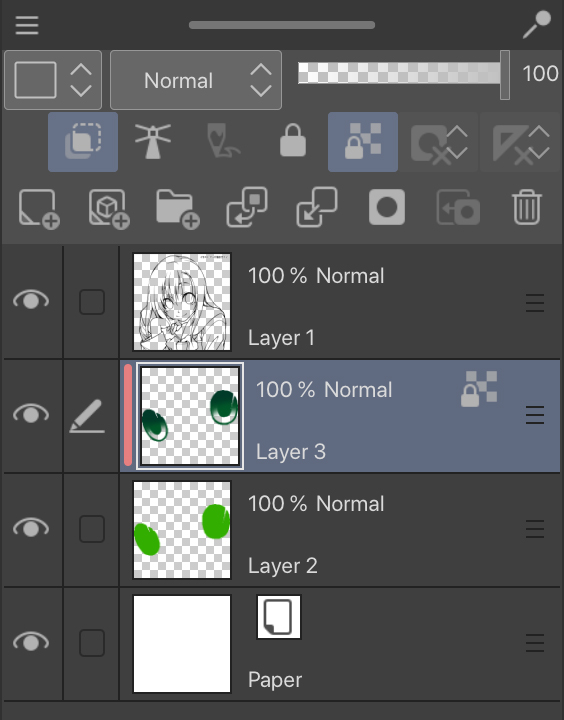
With the shader layer selected, we activate Lock Transparent Pixels in the command bar of the layers palette.
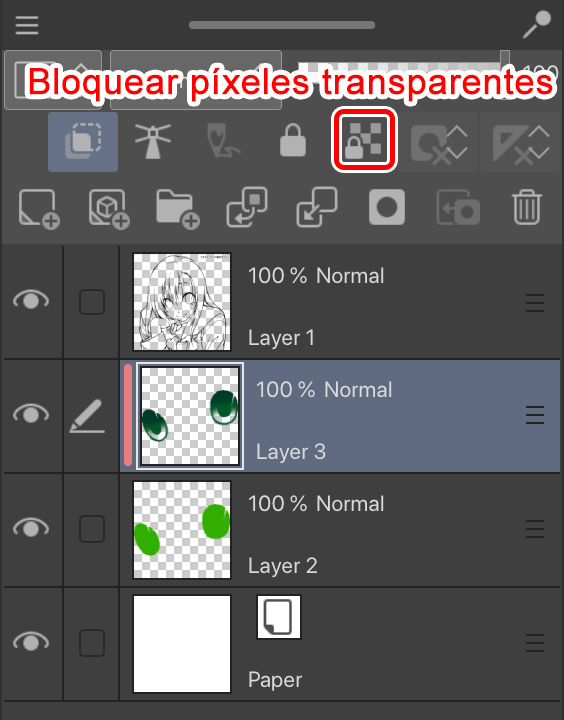
This will block the transparent pixels so that only the opaque ones can be modified.
4. I add some color on top with the airbrush to soften the edge that separates the pupil from the eyelid line art.
Don’t darken the rest of the pupil too much so that the area painted in step 2 doesn’t look too narrow.
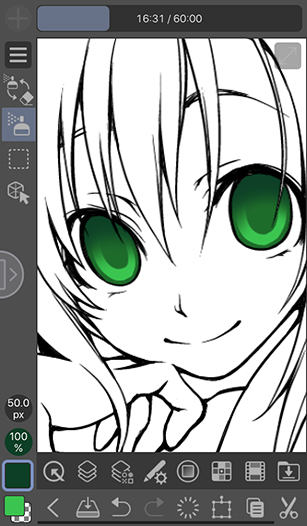
5. We do the same with the lower half of the iris and paint over the line art with a slightly darker color.
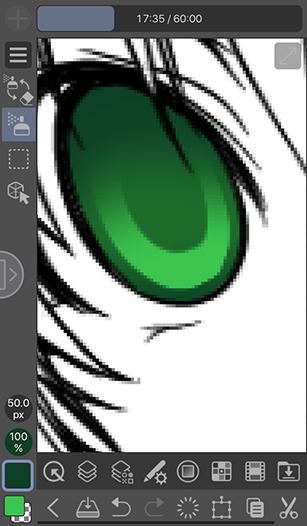
6. We added darker shadows to the pupils. As you can see in the image, I’ve darkened the lower part.
5. Shines and reflections
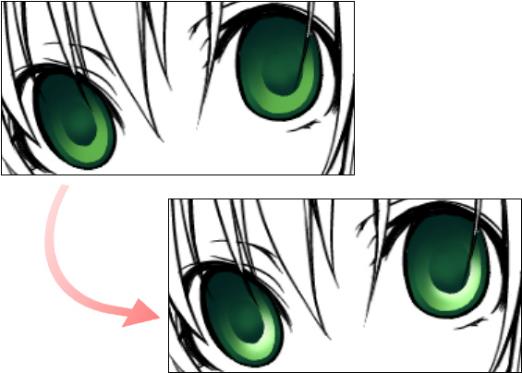
We return to the base layer and partially lighten it to create contrast. The Lock Transparent Pixels function is also very useful here .
Next, I use the airbrush to shade the lower right area of the base layer with a lighter tone. Make sure the shading matches the lighting in the scene.
Also, avoid using white for highlights. Doing so will increase the brightness too much and might even give the impression that you forgot to paint that area. Instead, use bright colors similar to the base colors or those around the character or on their clothing.
6. Reflections and finish
Finally, we add the highlights. Highlights are very important, as they are responsible for bringing the eyes to life.
Without them, your character’s gaze will seem empty, which isn’t bad if that’s the effect you’re going for.
To paint the highlights, create a new layer above the line art layer. Drawing the highlights on top of the line art adds more depth to the eyes.
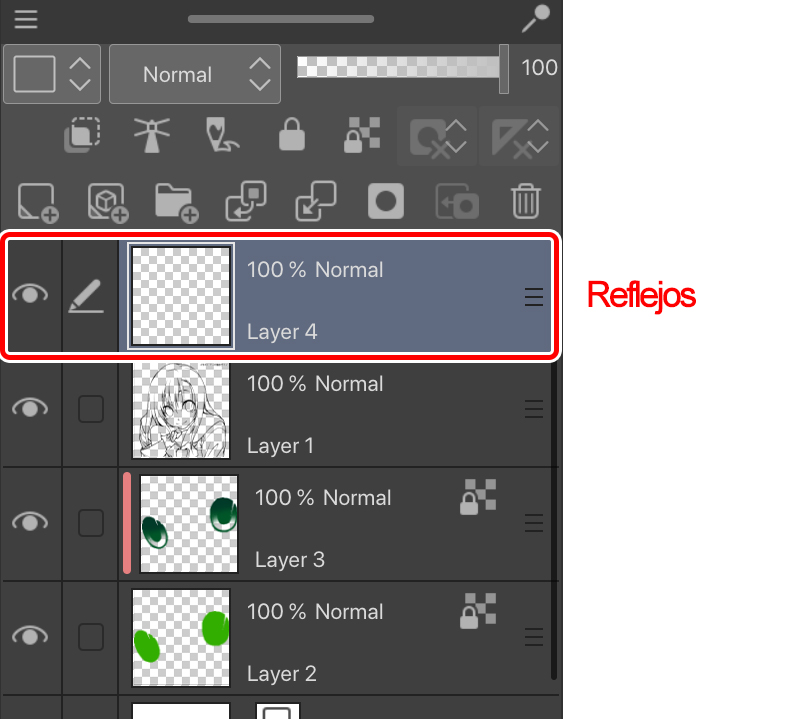
You can determine the direction the character is looking by playing with the position of the reflections.
In my case, I’ve decided to add them to the top left.
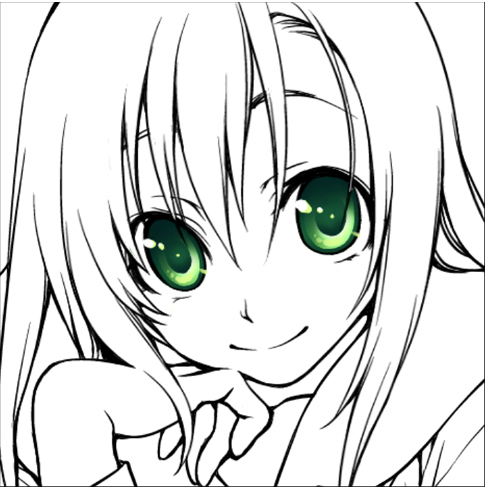
And that’s all!
Reflections change depending on the light source in the scene and the direction the character is facing. Don’t hesitate to try different angles until you find the one that works best!
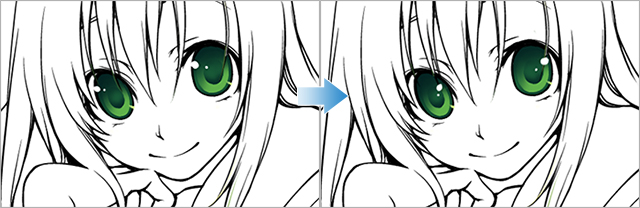
Recapitulation
We’ve followed the basic steps necessary for painting the iris and pupil of the eyes. There are many things to play with in the eyes, such as the size of the iris, the highlights, the color palette, and the position of each element. Experiment on your own characters until you find the combination that best suits their personality!