Hi everyone! I made this tutorial to document how I created the fur for a commission. It took some research to get it right.
I mainly studied how Clockbirds makes her pieces (she’s a very talented artist on YouTube and DeviantArt!), so I give her credit for letting me try to decipher her technique.
However, she uses a different program, so I came up with a formula that I can remember and use in Clip Paint Studio.
[1] Base Color/Color Selection
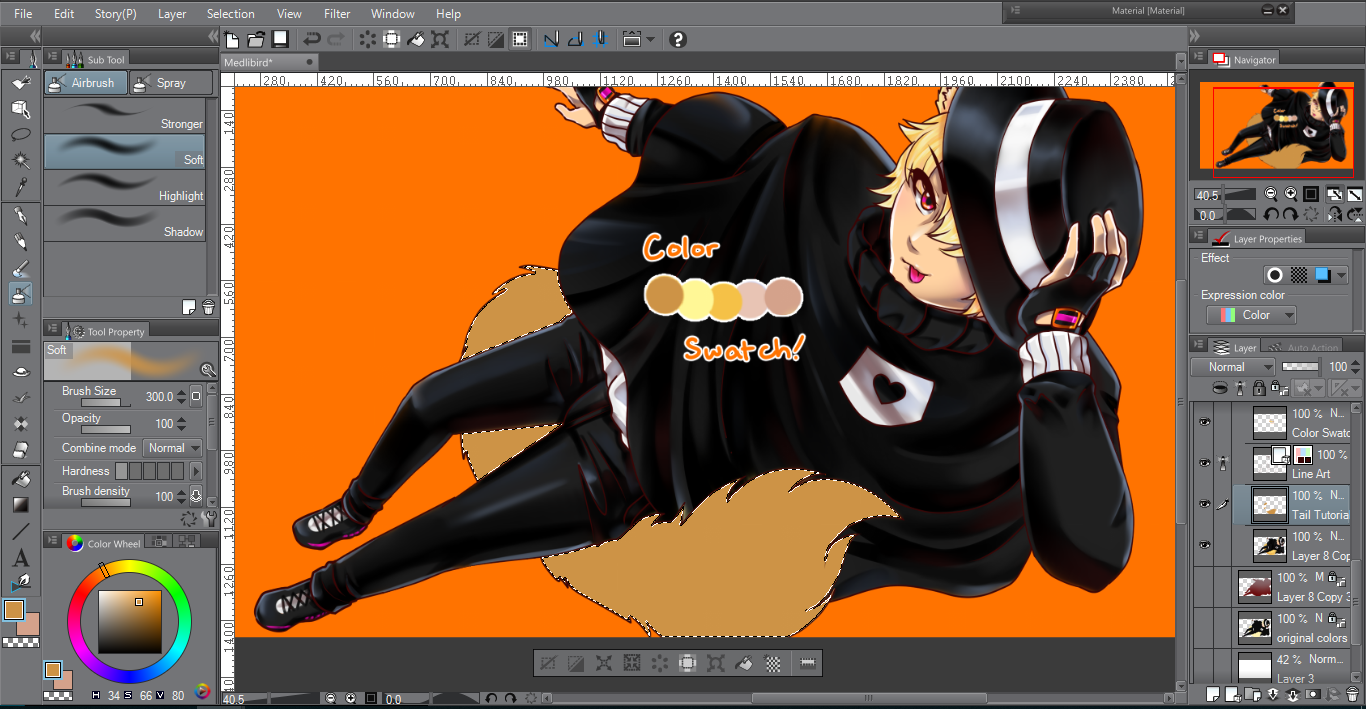
Here, I already have my line art and base color filled in. The character I’m drawing is a Neko boy, so the tail is a long-furred, cream-colored cat tail. I usually choose my colors before making my brushstrokes, and even if they don’t have the right saturation or intensity, that’s okay, since I can adjust them later.
The character’s original color is much lighter than the base color I’m using, but for the fur, I learned that coloring the strands from dark to light works best.
Here I have: [center to left]
Medium Color (the central color, a more saturated orange color)
Highlight Color (original color; a lighter, yellowish tone)
Shadow Color [Base] (a slightly darker, unsaturated color, towards the red end of the spectrum)
Two additional colors in shades of orange-pink, subtly unsaturated, for the underlayer. (Yes, they’re orange, not purple or pink! :D)

Since I usually do everything on a single layer (to recreate this tutorial, I put the tail on a separate rasterized layer), I use the magic wand tool to keep all the fur brushwork within the selected area.
That’s me, though; if you separate all the clothing and other parts of the image onto different layers, you can use the “Lock Transparent Pixel” tool to keep your work within the line art. ^u^b
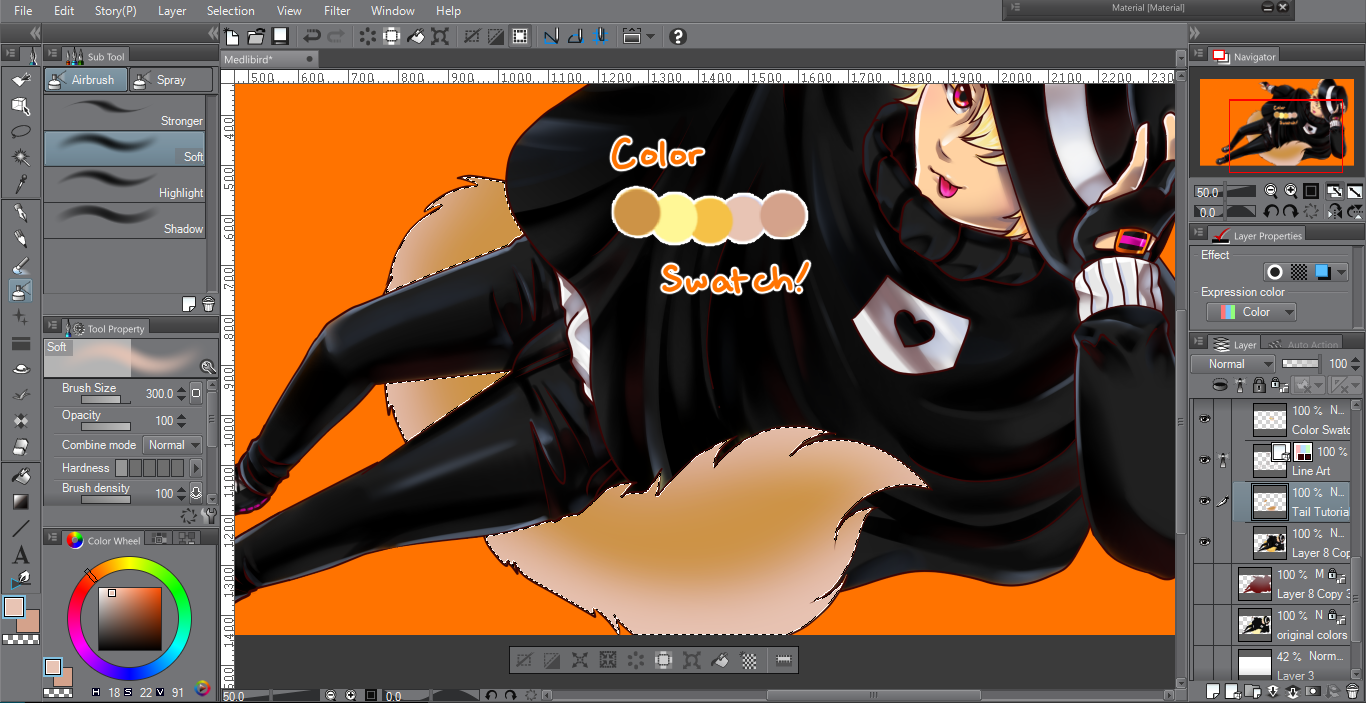
Using the Soft Airbrush tool, I create a gradient around the tail, using the colors from the base layer.
[2] Brushstroke Technique and Tools
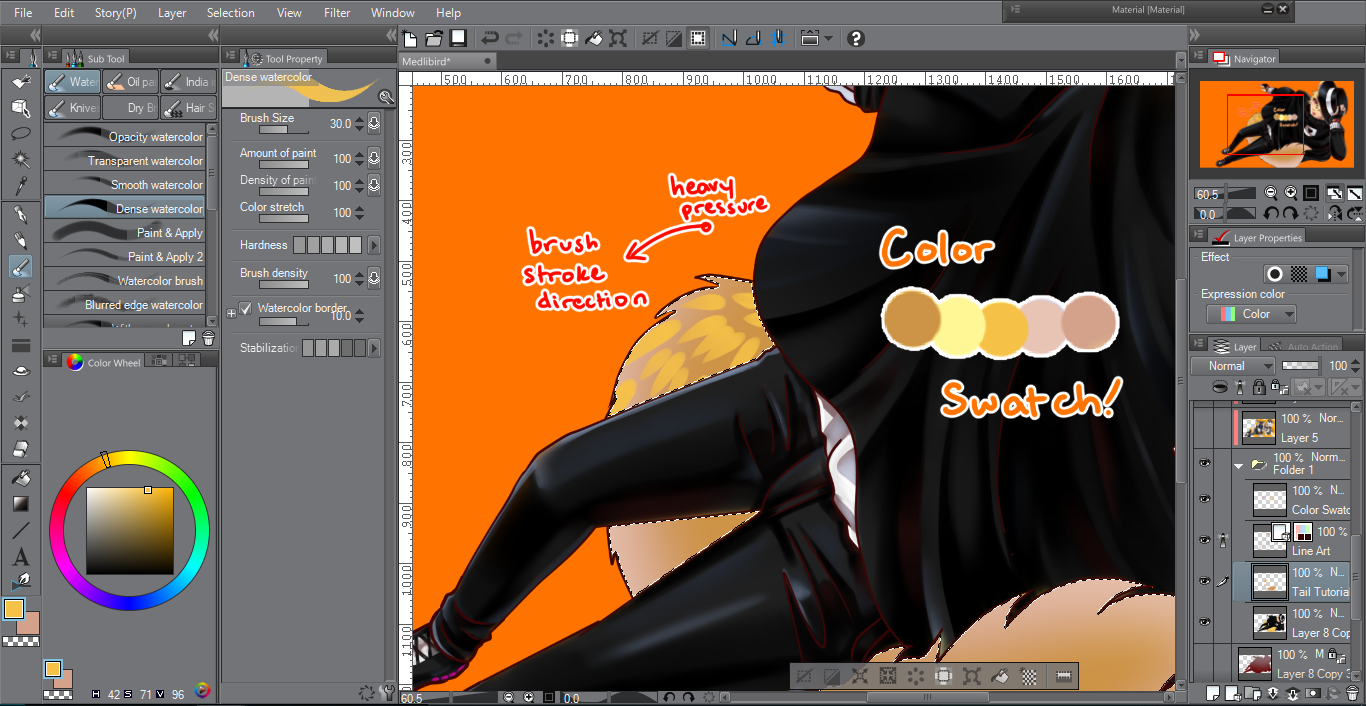
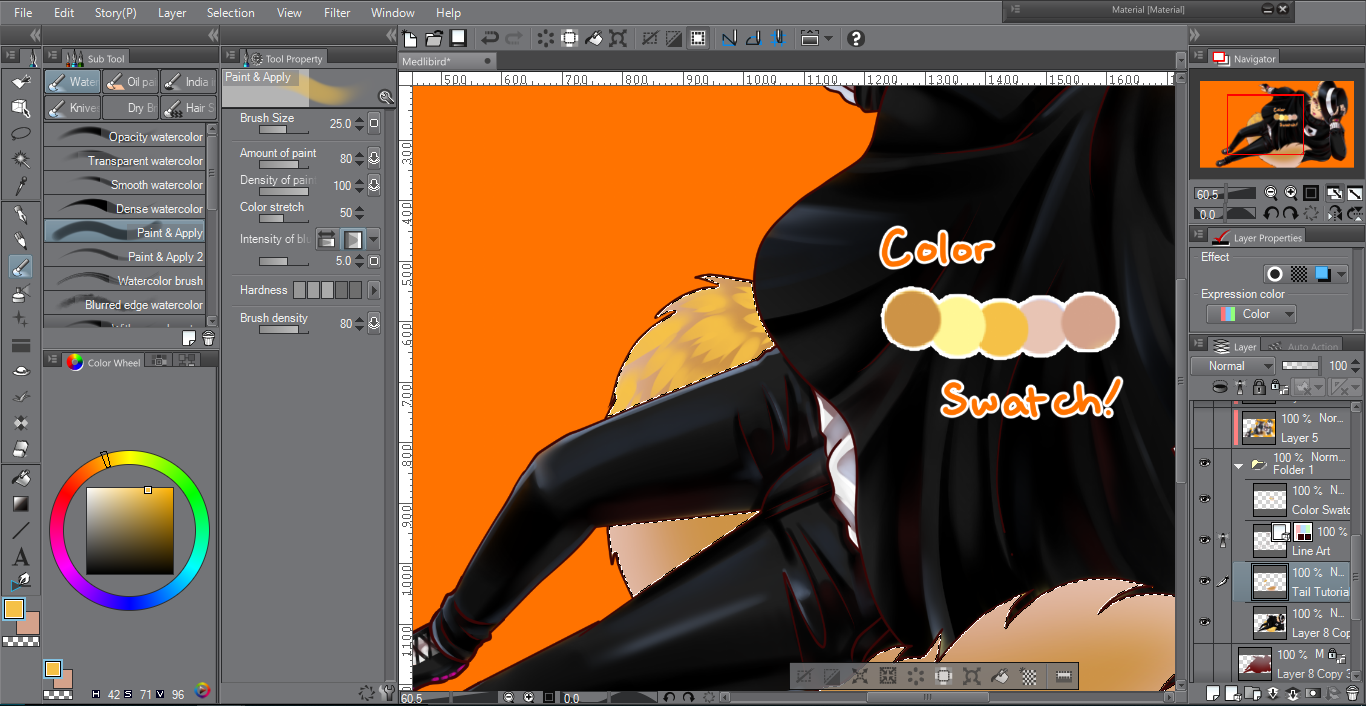
Next, I use a combination of the “Dense Watercolor” and “Paint & Apply” brushes to texture the tail.
The Dense Watercolor brush shapes the gathered clumps of fur, and Paint & Apply blends the tip with the base colors.
Apply the Medium Color of bright orange over the tail. Try to keep the brushstrokes short. Also, vary between fine and thick strands of fur.
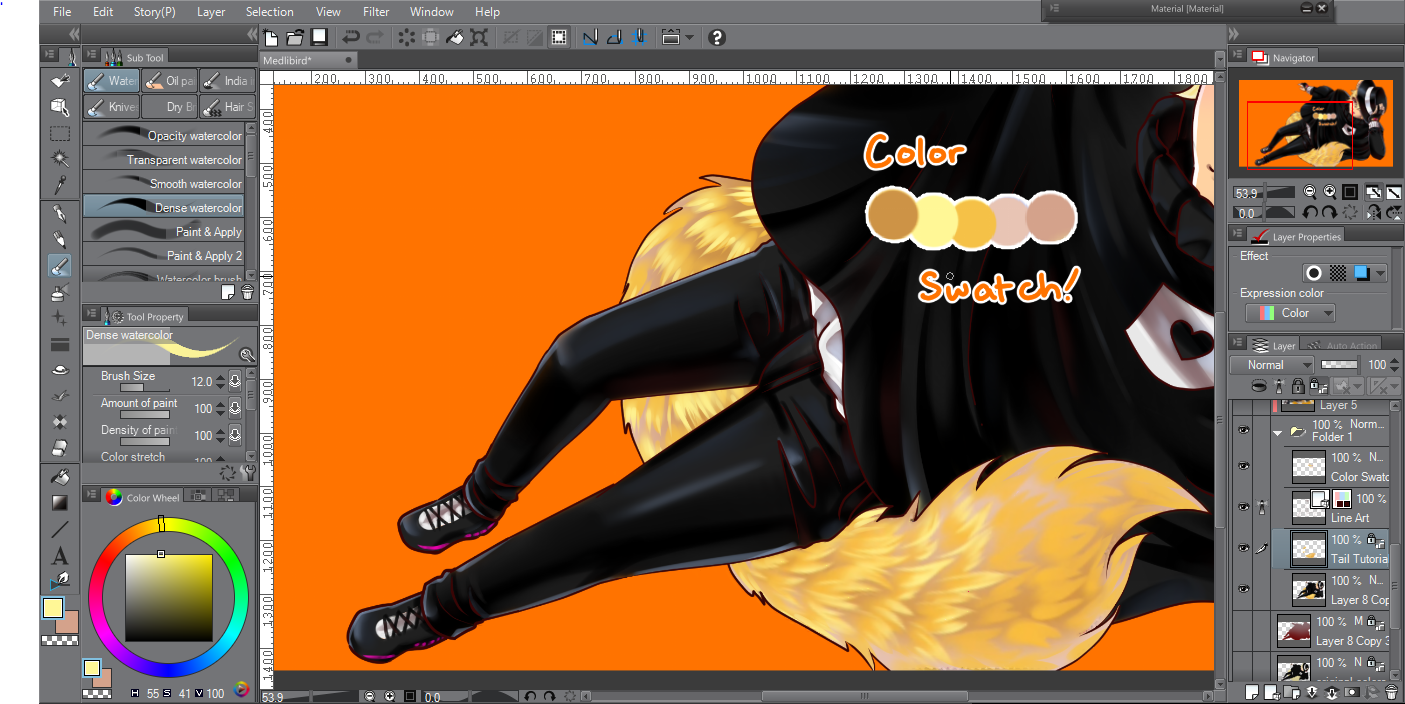
Once you’ve finished with the base colors, go back and repeat the same steps using the highlight colors! It looks complicated, but it’s really just a simple texture! 😀
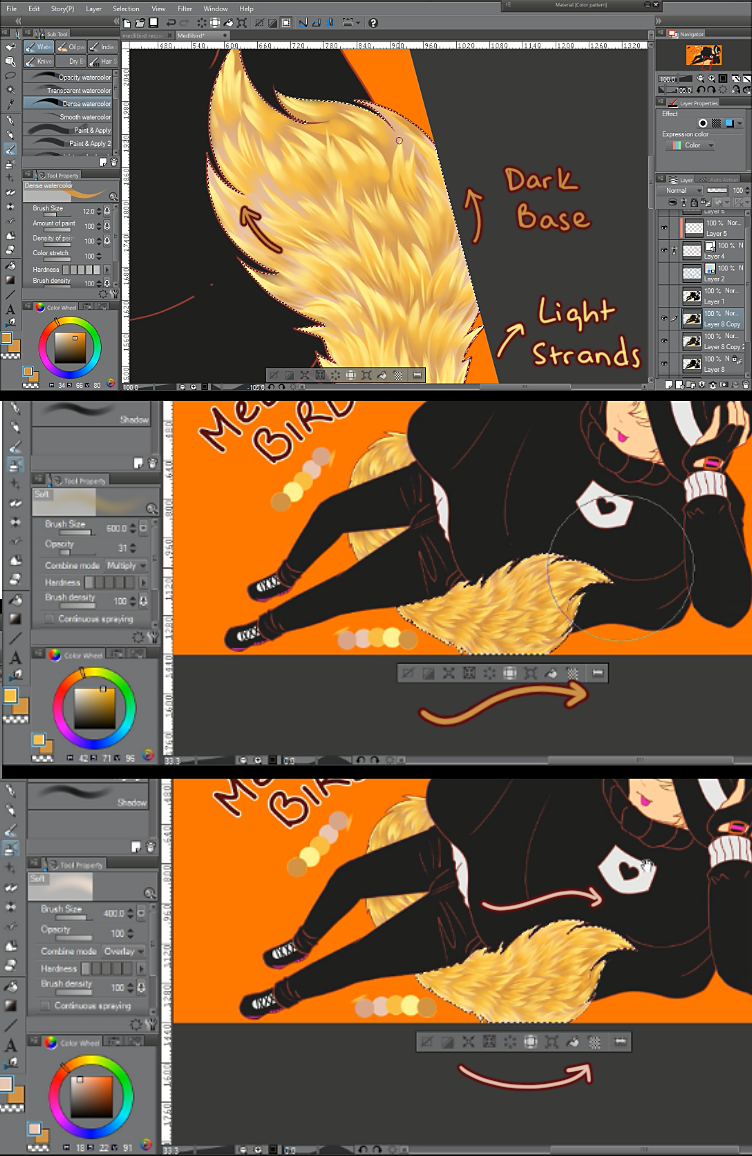
Personally, I further defined the darker areas using the same Dense and Apply brush method, with the shadow color. After adjusting the random strands, I used the soft airbrush to give the entire tail some three-dimensionality.
At 31%, I used the multiply mode, and then I illuminated the edge of the tail with some of that pink-orange underlayer color, using the overlay mode.
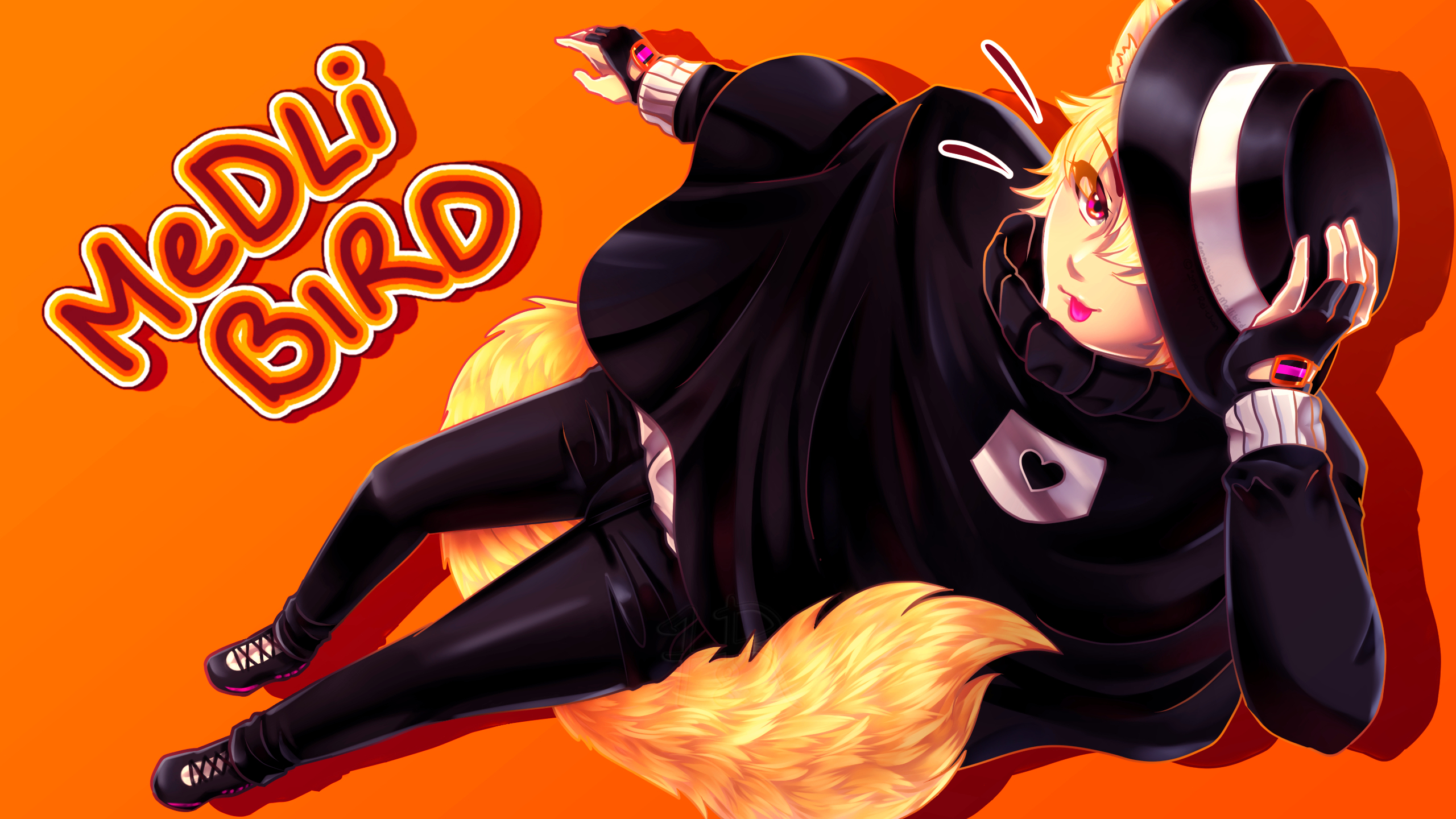
Final touch: play with brightness and contrast, levels, and other color edits to make it stand out!
And it’s done!