Hello, friends! In this tutorial, I’ll show you my step-by-step process for rendering hair in Clip Studio Paint using only the program’s built-in tools—specifically, CSP’s fantastic range of watercolor brushes. Let’s get started!
Conceptualization
Hair has a dramatic impact on a character’s visual and aesthetic aspects and therefore can be an indicator of good or bad character design. The first thing I like to do is familiarize myself with the character.
It can be helpful to begin your process by casting a wide net of words and phrases that best describe your character. Is he/she elegant? Wild? Sensible? Menacing? Working this out before putting your pencil to the tablet could produce a more cohesive and thematic result.
Sketch
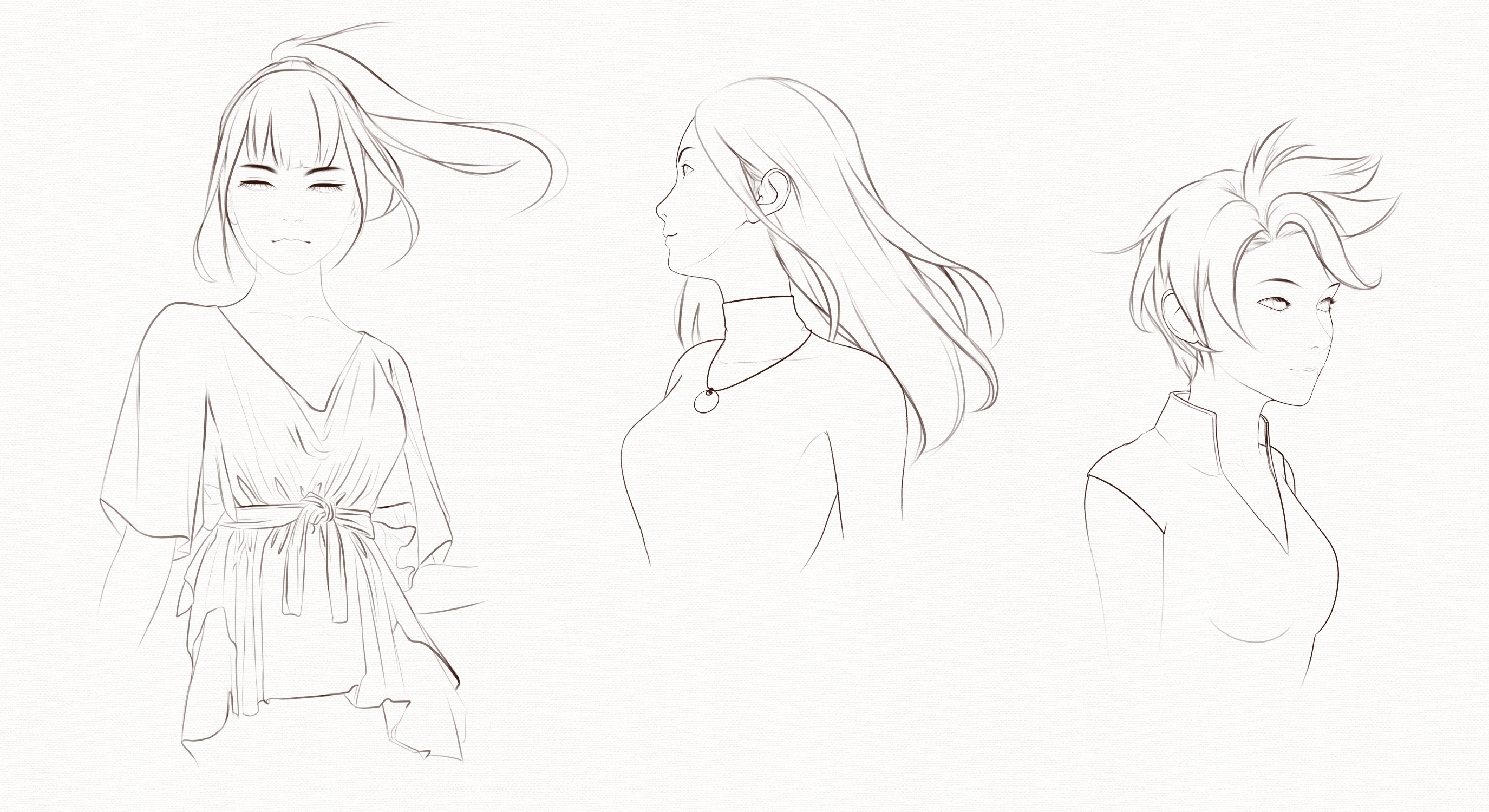
I’ve prepared a sketch of three figures from different angles. I recommend drawing the entire skull; this should make it easier to determine the correct hair volume and avoid any flattening or irregularities. But if you’re comfortable with your drawing skills, you can simply skip this step.
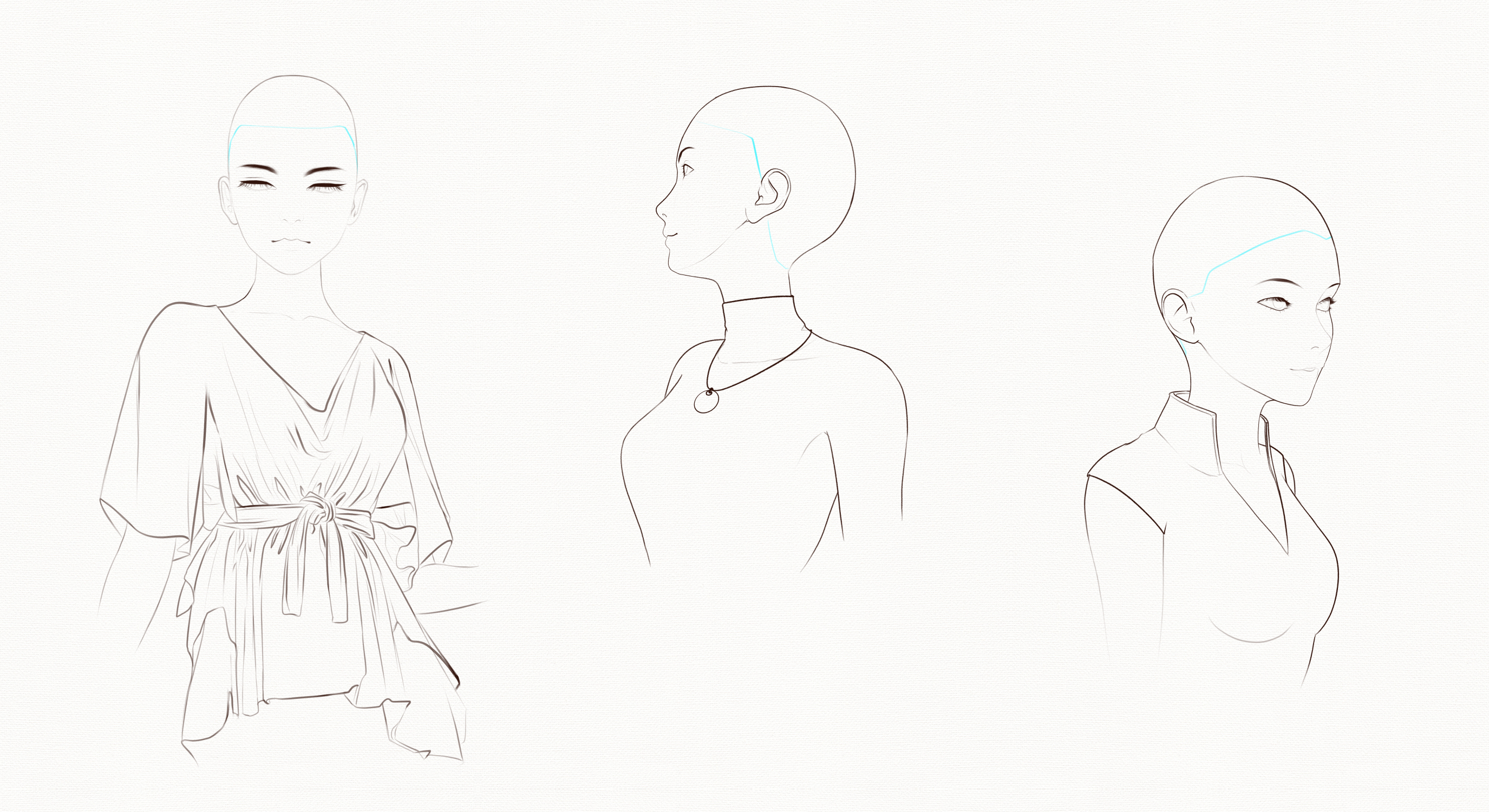
I’ve marked the hairline as indicated in blue. The hairline can be higher or lower for stylized proportions, but here I’m using a semi-realistic style.
The hairline crosses the forehead, curving towards the center, then downwards until it disappears behind the ears.
You might want to incorporate a slight widow’s peak in the middle of the hairline if you want your character to have a more defined appearance, as illustrated in the figure on the right.
Basic Form
Thinking in terms of “large shapes” is a common method used by illustrators; in other words, breaking down the subject into its simplest possible form and then building the detail from there. This basic shape will be the structure of the hair.
More angular shapes often denote “fierceness” or “confidence,” for example, while more curved, soft, and whimsical shapes often denote “gentleness” or “kindness.”
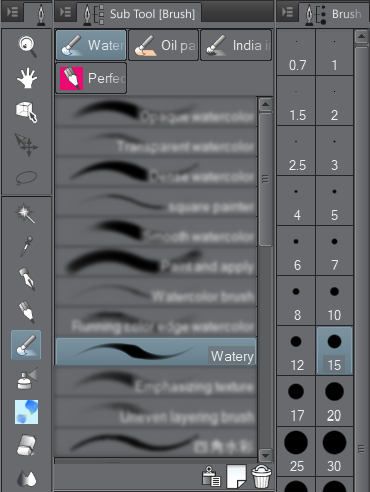
When drawing my basic shapes, I like to use the default “Watery” brush in Clip Studio’s [Watercolor] brush sub-tools panel, set to between 10 and 15 px in size. I like this brush because of its tapered tip and its translucent color application, which almost gives the appearance of strands of hair.
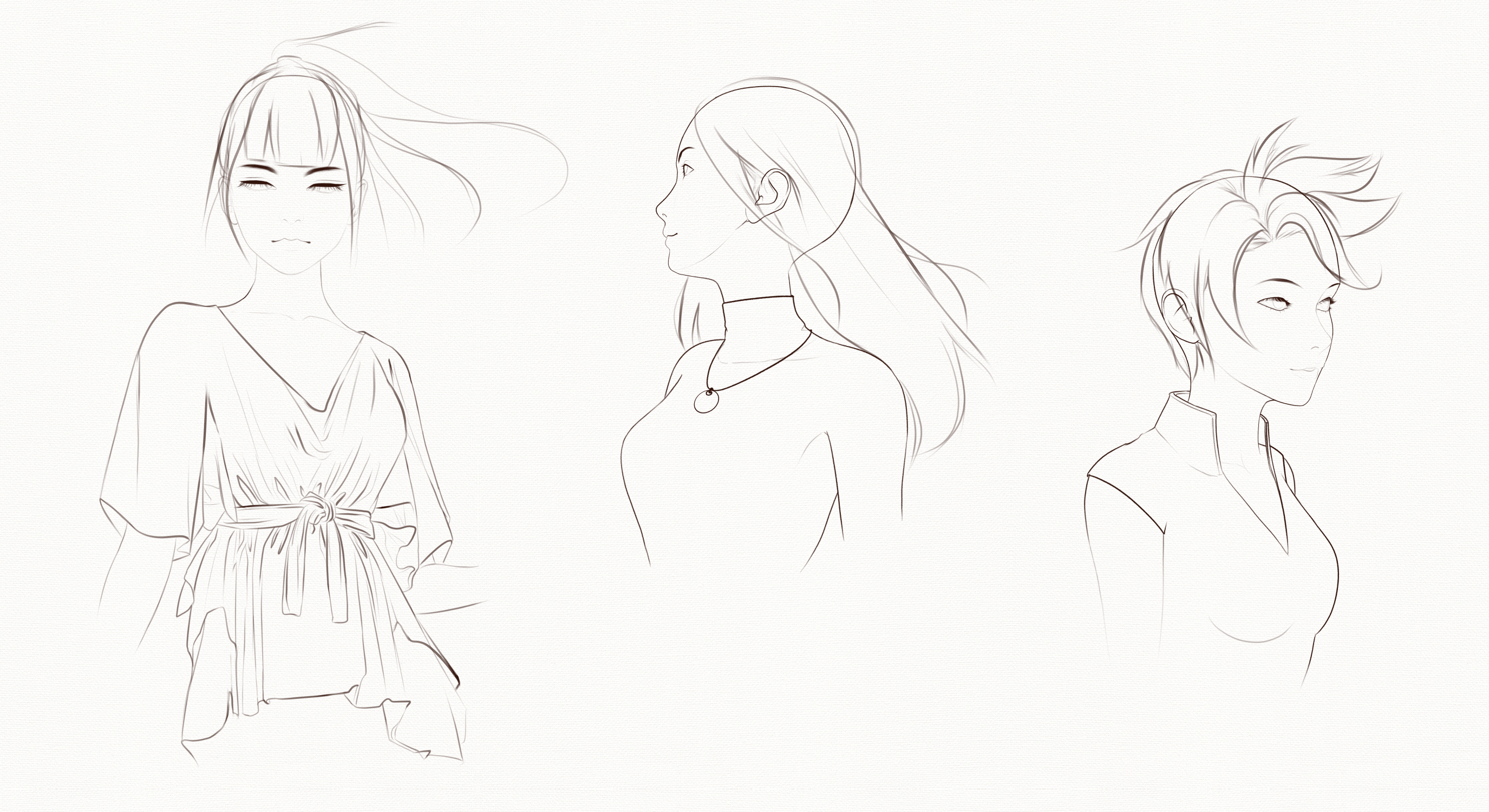
Using loose, confident brushstrokes, I proceed to draw the basic shape of the hair. It’s okay if your lines are a little messy here. Also, consider movement—is your character posed in the middle of an action? Is there wind blowing through their hair? If so, draw your lines in the direction of the movement.
Defining the Form
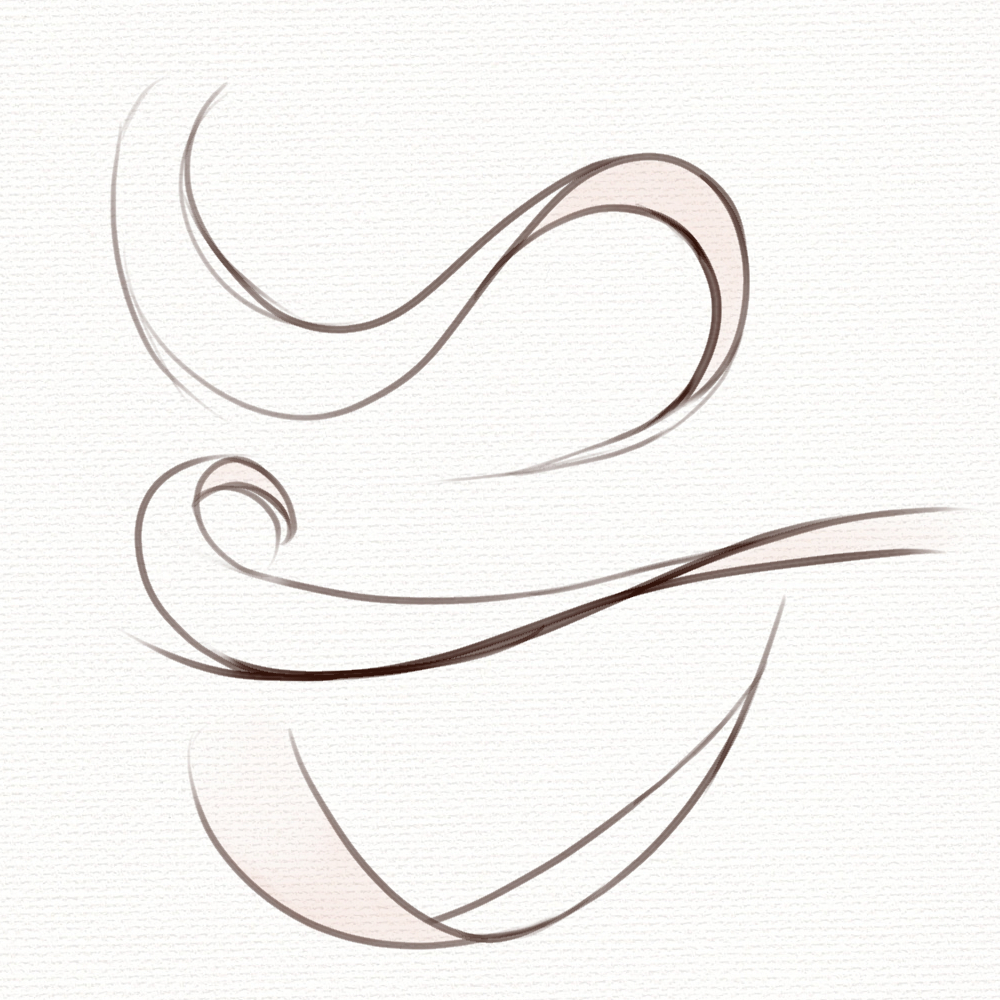
Now I break down the basic shape into a few smaller pieces to establish the various layers of a hairstyle.
Here I like to use a technique I call the “Flat Planes Technique.” I imagine these pieces as flat, two-dimensional surfaces reminiscent of ribbons that can be curved and deformed.
Base Color
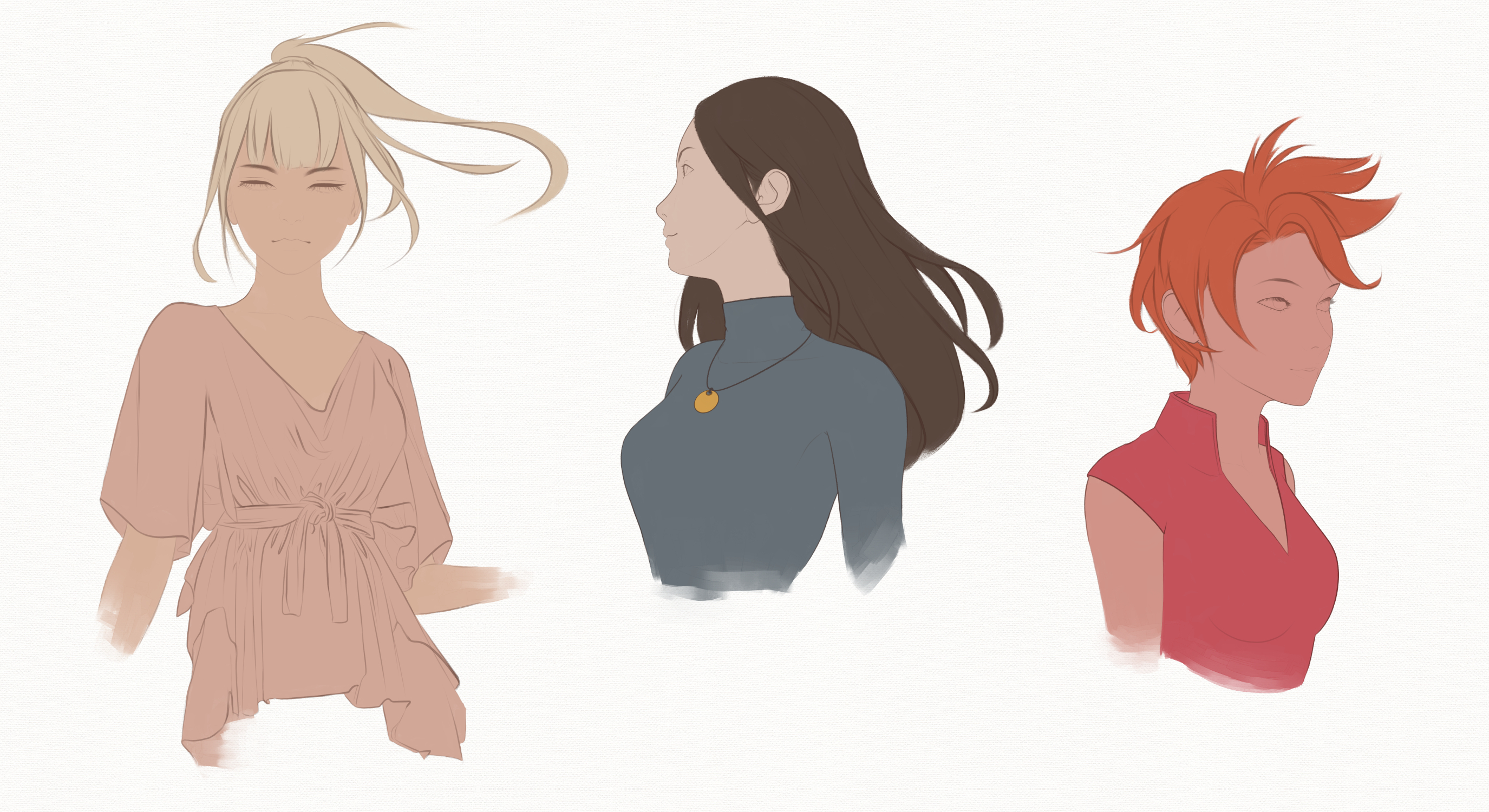
I reduce the opacity of my sketch to around 50%. On a new layer below the sketch, I begin to apply the base hair color evenly using the default “Flat Oil Paint” brush in Clip Studio’s Brush Sub-Tools panel [Oil Paint] (or any brush with a bristle-like tip); this color is usually the mid-tone.
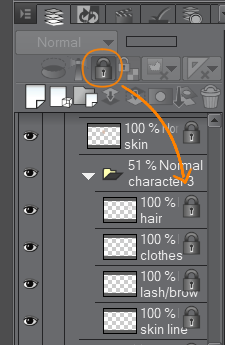
Tip: Use the “lock layer” function to lock layers you’re not currently working on. This will help prevent accidentally painting on the wrong layers. I’ve locked my sketch layers here, for example.
Light and Shadow
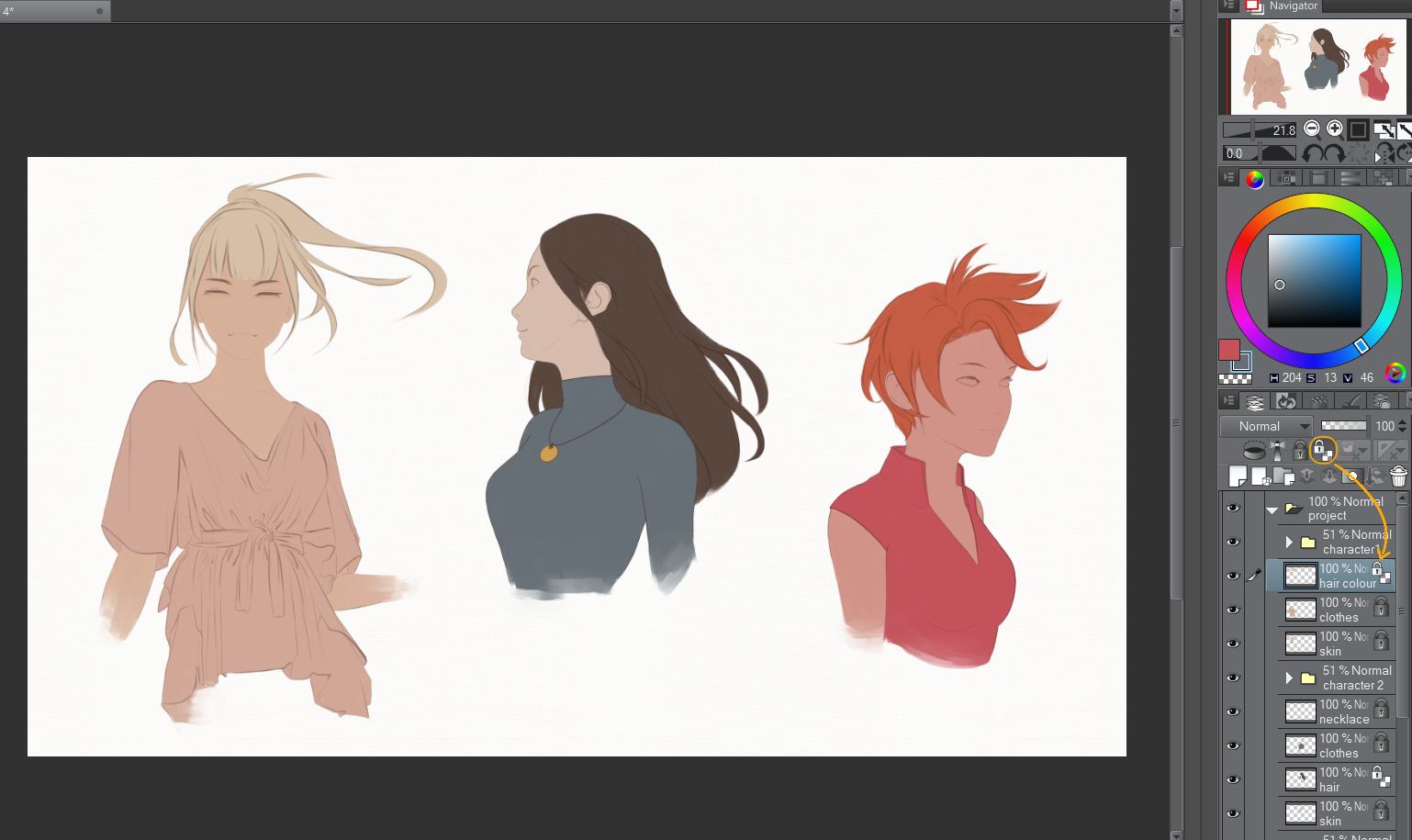
Once a base color is fully applied, the next step is to identify where the light and shadow areas will appear in relation to the light source. With my base color layer selected, I click the “Lock Transparent Pixels” icon that appears below the Layers panel.
This handy tool will protect the alpha channel of my selected layer so that my brush strokes remain within the parameters of the base color. You should see the same icon displayed in the corner of your selected layer, indicating that transparency lock is active.
Slightly shifting my color tone and choosing a lighter shade from the color wheel, I then select the “Soft Airbrush” from the [Airbrush] sub-tool.
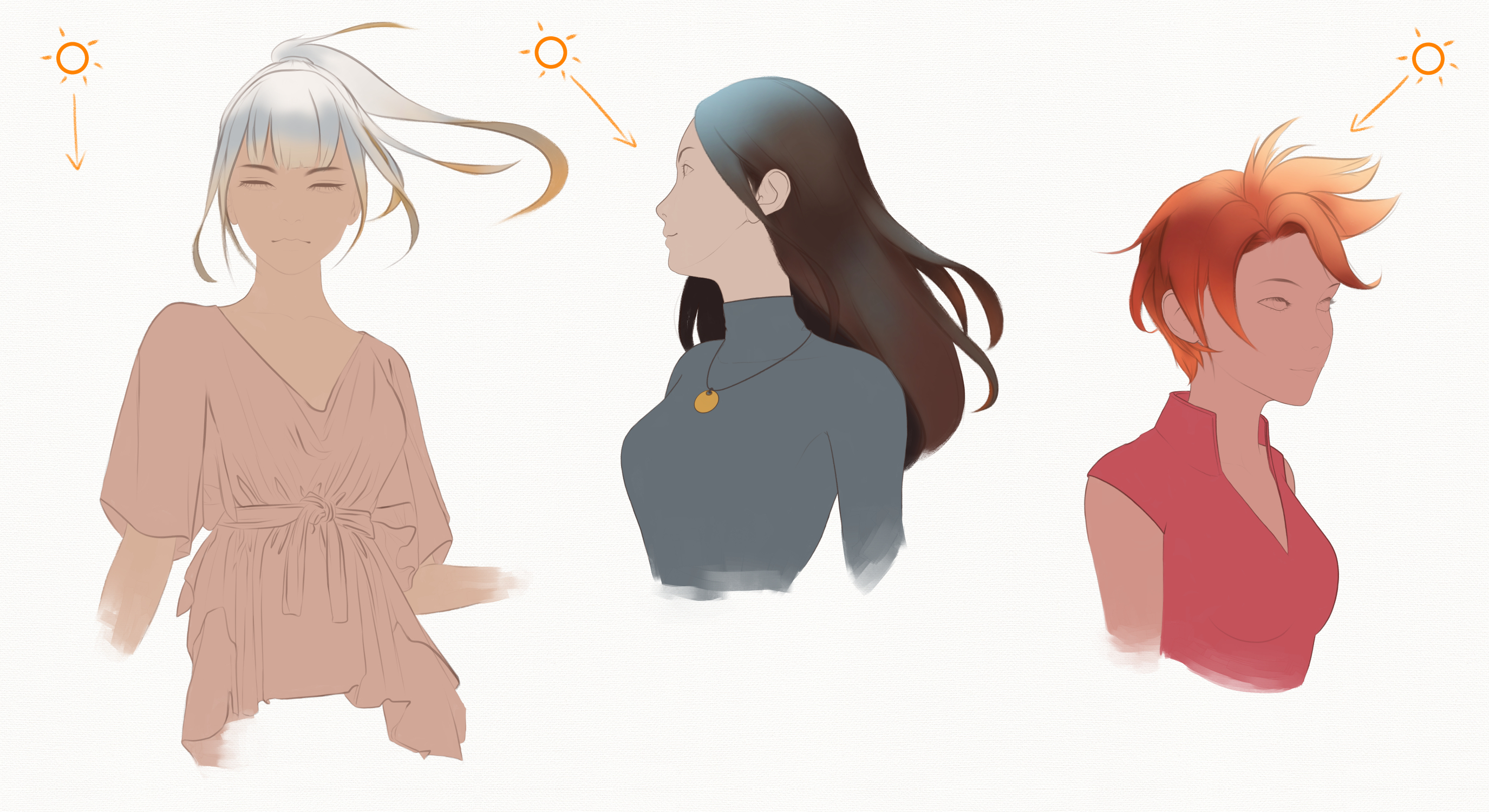
I’ve already decided on the position of my light source and lightly airbrush over the areas where the light hits, pressing my pencil harder where it’s closer to the light source.
Darker surfaces tend to reflect more light from the environment; I imagine my characters under bright sunlight with a blue sky above, so the tone of the central character shifts even further towards blue.
Changing my tone again, but this time with darker tones, I airbrush the shaded areas while adding accents of ambient light over the midtones as I go.
Detailed Rendering
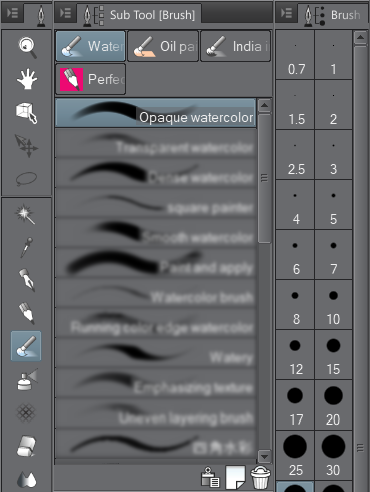
By switching my brush to “Opaque Watercolor” in Clip Studio’s Brush [Watercolor] sub-tools panel, I now use the Eyedropper tool to select colors from among the different shades and make a series of short, quick strokes (almost like a push-and-pull motion) that follow the direction of the hair.
This creates a more realistic transition between the previously airbrushed shades, while also creating the illusion of finer strands of hair.
I also take this opportunity to add deeper shadows within the already established shadows, as well as some lighter areas to give the hair some contrast and value.
Featured
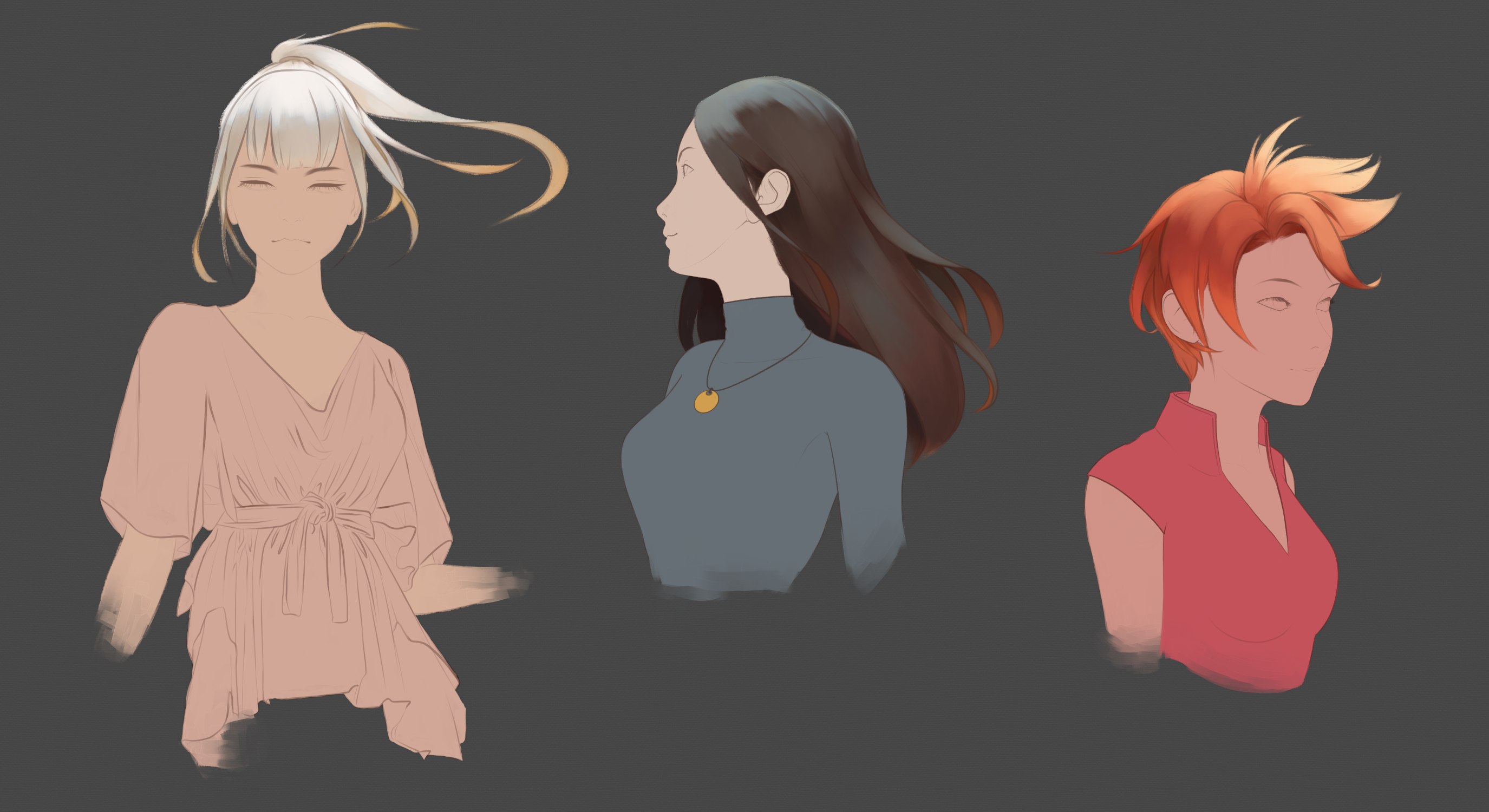
Now I’ll try adding more depth to the hair’s highlights with a touch of light. This will add a sheen that gives the impression of a silky hair texture. I select an almost white tone, lighter than all the previous tones used so far.
With the same “Opaque Watercolor” brush (or any hard-edged brush) and a fair amount of pressure on my pencil, I apply it only to a few areas that are strongly illuminated by the light source. The outer edge of the hair’s surface that falls into shadow is one of those areas.
Edit Sketch Lines
When it comes to hair, I like to incorporate my sketch lines into the painting. First, I set the opacity of my sketch back to 100%. By locking the transparency of my sketch layer, I use the Eyedropper tool to select the colors directly adjacent to the lines and then paint over the lines with that color.
This essentially merges your line art or sketch with the painting. However, I also use a slightly lighter color for some areas and a slightly darker color for others (lines that overlap shadows, for example) to add some variation to the hair.
Improving the light
We’ll take the lighting a step further. For this step, your sketch and paint layers will need to be merged into a single layer or grouped into a single folder.
I create a new layer above and clip it to my hair layer/folder using the “Clip to Layer Below” function in the Layers panel. A red bar should appear to the left of your layer. Now, everything I paint on this layer will stay within the boundaries of my underlying paint layer.
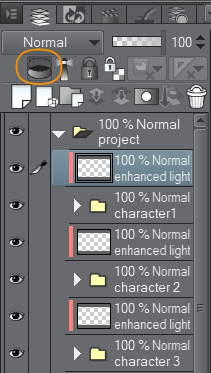
I select “Lighten Color” as my [Blending Mode].
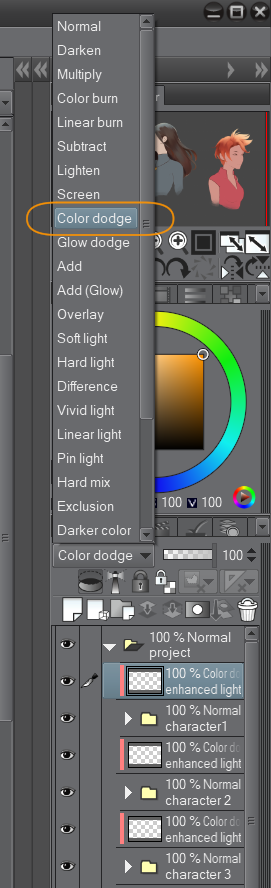
I switch to the “Soft Airbrush” tool and, using the same color palette as the character’s hair, I very lightly brush over the highlights I placed earlier and in the areas where the light hits. “Lighten Color” produces a very intense result, so be sure to apply it sparingly.
Tip: You can use Clip Studio’s “Blend” tool to blur and reduce the intensity if you feel some areas are too bright.
Loose Hair
To make the hair look more realistic, one of my final steps is to add stray hairs. I select a very light shade from the color wheel.
I go back to the same “Watery” brush I used in the sketching phase and set the brush size very low, as I want these hairs to look light and fine.
On a new layer above the hair, I again make loose, confident strokes, following the movement of the hair and applying them to random areas.
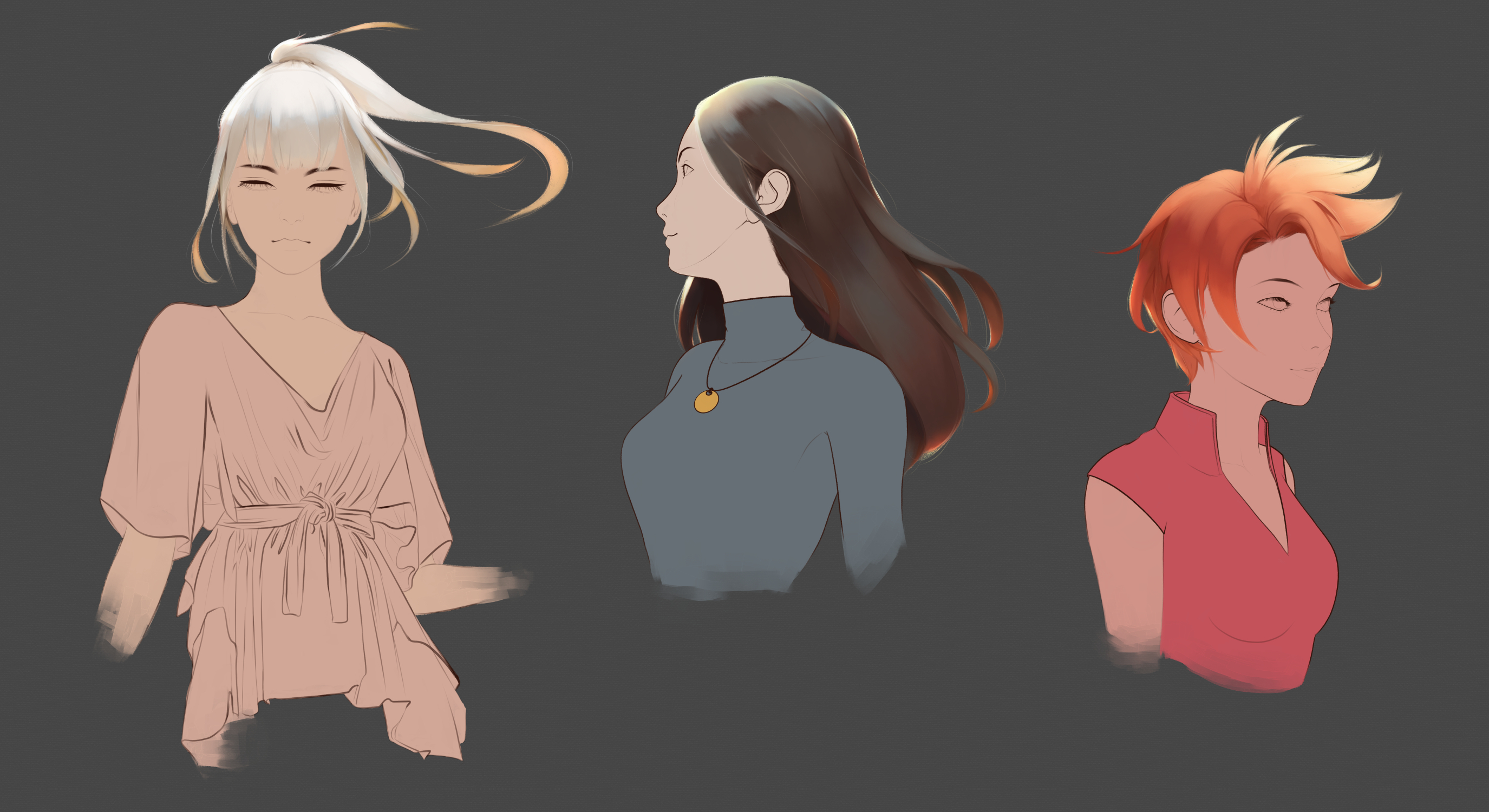
And that’s it! I hope my steps have provided some guidance and inspiration. If you have any questions or requests for future tutorials, feel free to leave a comment below. Thanks for reading!