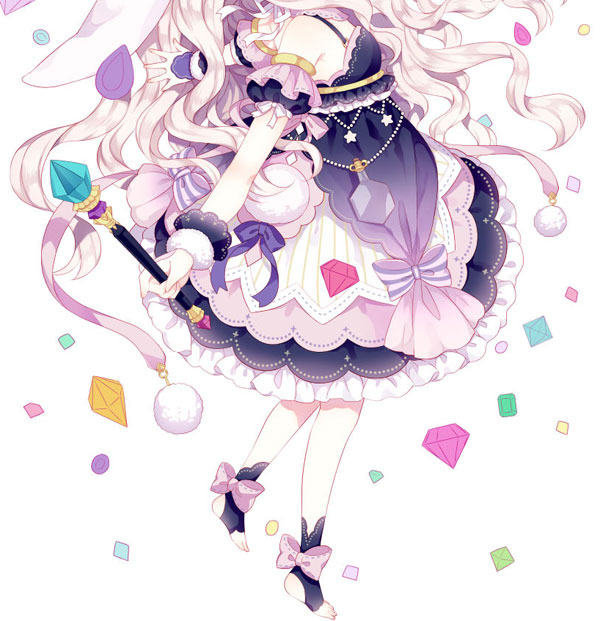
Welcome! If this is your first time visiting this guide, don’t worry—we will take it nice and slow.
Right now, your character’s clothes have their basic colors, but they still look flat. In this section, we will make them look more real by adding shadows and adjusting the colors.
We will go step by step, from painting simple shadows to fixing the colors so everything looks bright and nice. Just follow along, and you will finish your clothing in no time. Let’s begin with the first step…
How To Shade Clothes? Step by Step
Now we will paint the rest of the parts, such as the clothes.
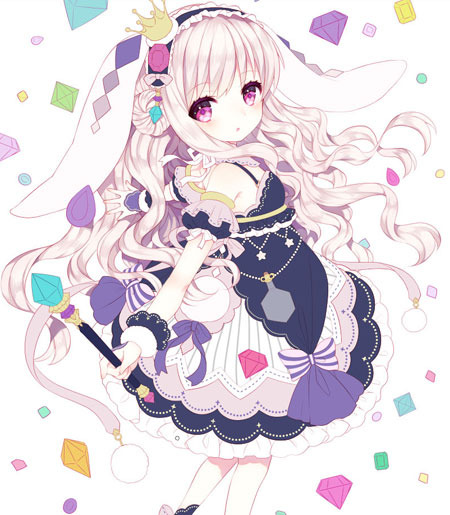
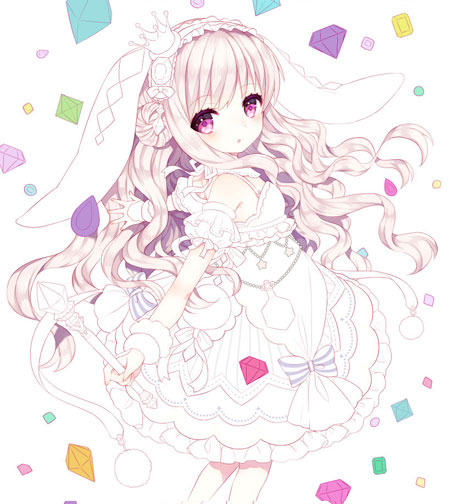
① When shading, we will temporarily change the colors of the clothes to lighter colors, as it is difficult to distinguish the shadows well in dark colors.
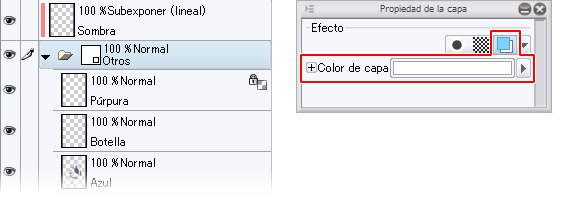
After selecting the “Other” folder, which contains the base color layer of the dress and other elements, we apply the [Layer Color] effect from the [Layer Property] palette and set it to white.
Now we’ll add a new layer to the folder for the shadows. We’ll set the layer’s blending mode to [Linear Burn].
2. First, we will draw all the shadows without too much care using the [Pen] → [G] tool.
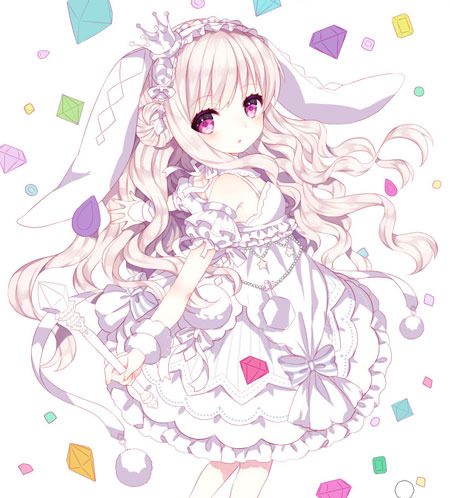
③ Now we will detail these shadows with the [Brush] → [Opaque Watercolor] tool.
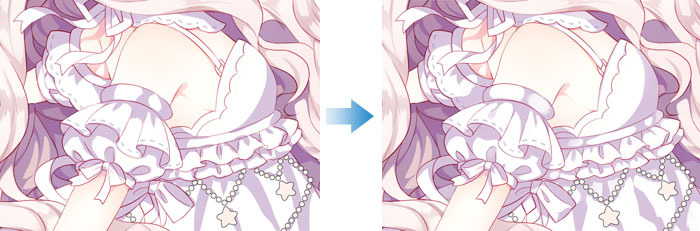
We detail the entire image while maintaining the sharpness of the shadows.
4. We add lighter shadows to create more volume. We will use the same colors as with the darker shadows.
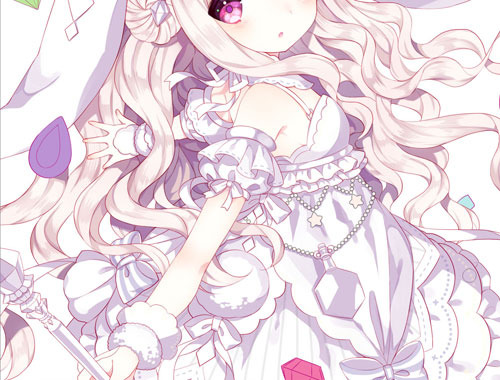
5 Finally, we deactivated the [Layer Color] effect in the folder, which was set to white.
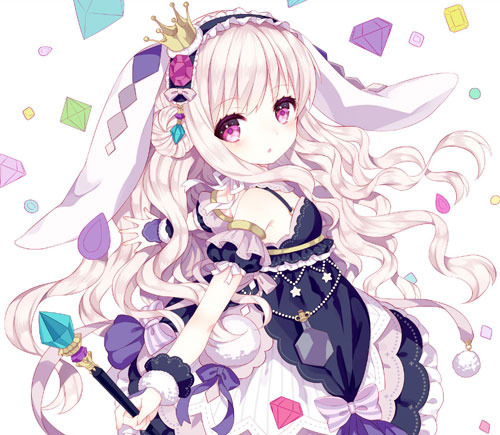
With this we finish the shading.
[2] Adjust the colors of the shadows on the clothes.
Now we will adjust the shadow colors.
Because the colors of the shadows in the pink areas of the clothing look somewhat dull, we need to saturate them.
We will create a selection area that groups all the pink parts and select [Selection from layer] → [Create selected area] from the menu that will appear.
Returning to the shadow layer, we will adjust the shadow color using the menu [Edit] → [Tonal Correction] → [Hue/Saturation/Luminosity].
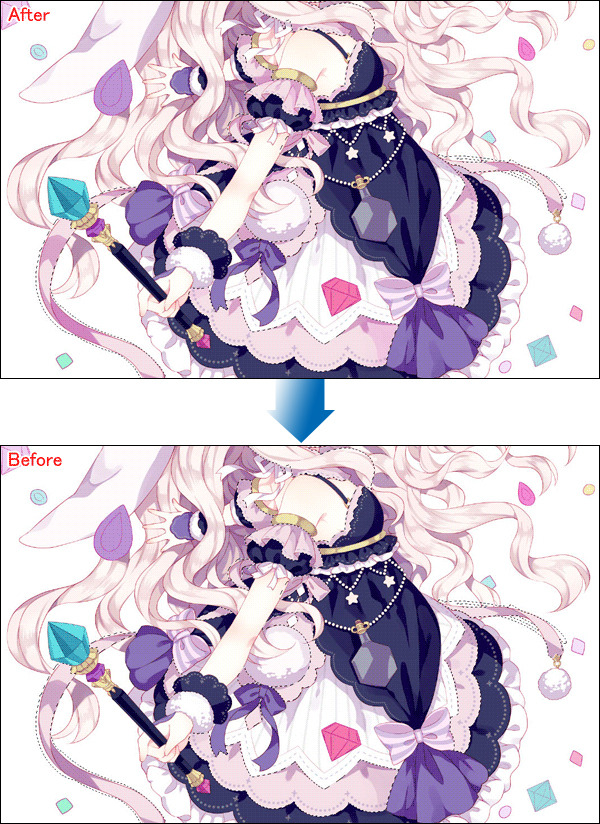
Following the same method, we correct all the shadows as needed.
[3] Adjusting the base color of the clothing
We create a new layer above the layer with the clothes painted in dark blue and select [Snap to layer below].
We will add a gradient-like blur to this layer.
By adding a bright gradient to clothing close to the skin, the skin becomes more vibrant, along with other details such as the matte blue becoming sharper.
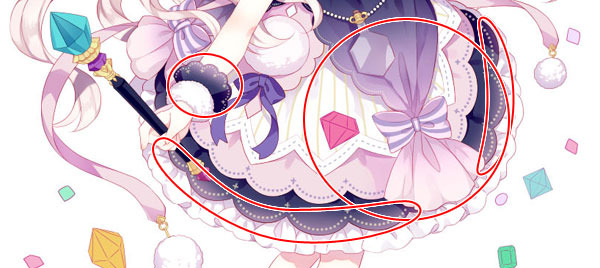
With this, we will have finished coloring the clothes.